OTP internet and mobile banking
Learn more about our services
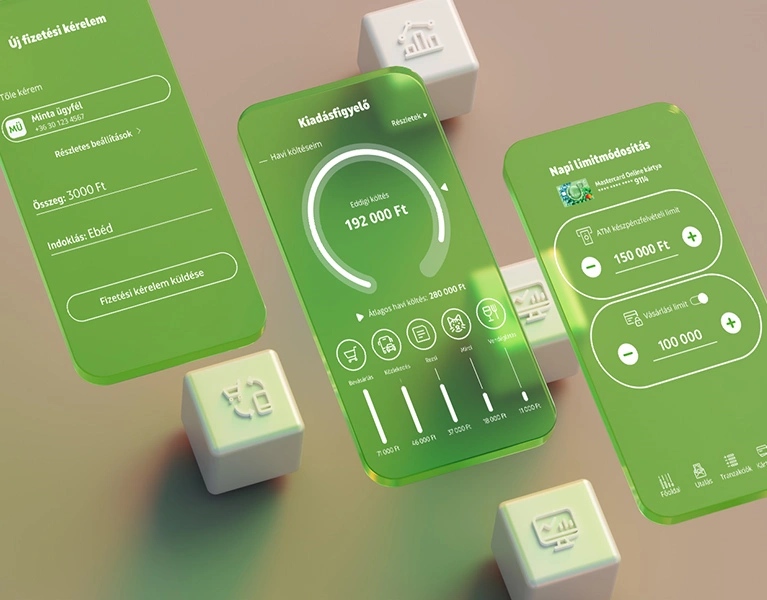
What do our digital services offer?
Complete management of everyday finances: you can use our innovative services alongside traditional banking.

Piggy Bank (Persely) function
- Digital savings made simple
- Simple application
- Regular and ad hoc deposits
- Access to the amount saved at any time
Digital savings made simple, regular and ad hoc deposits, access to the amount saved at any time.

Expense monitoring function
- Your expenses are automatically categorised
- You can change the categories
- You can also enter an individual category
- You can check your monthly spending
Your expenses are automatically categorised, you can change the categories or enter an individual category, or check your monthly spending.

Transfers
- Instant transfers
- Scheduled and regular transfers
- Payment requests
- Direct debits
- Partner management
- Bill Splitter
Instant transfers, scheduled and regular transfers, payment requests and direct debits.

Savings, investments
- Track your savings and investments in one place
- Term deposit
- Car Lottery deposit
- Retail government securities, bonds
- Fund units
- Open a securities account
Track your savings and investments in one place, term deposit, retail government securities, bonds, fund units.
How can you register?
To use OTP InternetBank and OTP MobilBank, a Digital Service Contract is required. You can sign this agreement during an online registration in the old OTPdirekt InternetBank, or on the new OTP InternetBank login page (if you have used the OTPdirekt InternetBank before), or you can book an appointment at any of our bank branches.
Try OTP MobilBank
Download the mobile app and register your device.


Android 10 and above, iOS 15 and above
Use your phone's camera to scan the QR code and download OTP MobilBank from the Google Play store or the App Store.
For devices with modified operating systems (jailbroken, rooted), the OTP MobilBank application is not available.
How much does it cost to use OTP InternetBank and OTP MobilBank?
From 18 November 2025, you can choose between two new digital service packages. You can change your settings in the internet bank and mobile bank, under Settings – Digital service packages.
| Basic | Plus | |
|---|---|---|
| Using OTP MobilBank and OTP InternetBank | free of charge | free of charge |
| Push notifications | free of charge | free of charge |
| SMS notifications | HUF 57 – 74 | HUF 45 – 63 |
| Monthly package fee | HUF 0 | HUF 0 / 649 |
Basic
Plus
- Using OTP MobilBank and OTP InternetBankfree of charge
- Push notificationsfree of charge
- SMS notificationsHUF 57 – 74
Message fees may vary depending on the mobile service provider. - Monthly package feeHUF 0
- Using OTP MobilBank and OTP InternetBankfree of charge
- Push notificationsfree of charge
- SMS notificationsHUF 45 – 63
Message fees may vary depending on the mobile service provider. - Monthly package feeHUF 0 / 649
Monthly fees may vary depending on the current account/account package.
The current fees are available in the announcement.
Frequently asked Questions
To be able to use OTP MobilBank or OTP InternetBank, you need to sign a Digital Service Contract with OTP Bank. You can do this in our branches, or - if you have used the old OTPdirekt internetbank and you know the data required for logging in (identifier, account number, password) - you can also sign the contract online in the old OTPdirekt internetbank or on the new OTP InternetBank login page.
There are more ways to sign your Digital Service Contract:
- At any of our bank branches - book an appointment
- If you have used the old OTPdirekt internetbank, under Applications / New InternetBank registration, or on the www.otpbank.hu/internetbank page
If you choose options 2, you can register as follows:
- Visit the www.otpbank.hu/internetbank page and click on the “Register for the new InternetBank” link.
- Enter your OTPdirekt InternetBank login information: HAZ ID, account number and password. (If you do not remember your ID or password, you can request a new password.)
- Enter the confirmation code that we have sent to your Mobile Signature phone number via SMS.
- Enter the email address you would like to use to log in later.
- Create a sufficiently strong password to access the digital services of OTP in the future. We recommend you use a password that is at least 8 characters long and contains upper and lower case letters and numbers.
- Then review and agree to the terms and conditions
and the related documents:
- Digital Service Contract
- Announcement
- Business Regulations
- Privacy Notice - As the final step, please confirm your digital account registration by clicking on the link that we send you in the confirmation email to your previously entered email address.
To use the MobilBank to its full extent and for QR approval, you need to activate your mobile bank registration with an SMS code. You can do this at the earliest 24 hours after registration.
There are several ways to activate your registration:
- you either click on the push notification we send to confirm registration and enter the confirmation code that we have sent to your Mobile Signature phone number via SMS,
- or initiate a transaction that you approve by SMS,
- or you can also activate your registration from the Settings / Activation menu.
Deleting the app from your device is not enough - you also need to remove the device registration itself.
You can do this in the app under Settings, by tapping Delete registration, or in OTP InternetBank under Settings / Devices.
When you sign a Digital Service Contract, you will have your own user profile, which automatically includes all the accounts you are authorized to manage.
Your “own” profile will include, for example, the bank accounts you own, and you can also manage your credit card accounts there. However, if you are a permanent authorized representativa, legal representative, or guardian on an account, those will appear in a separate profile. So if you are the legal representative for two other clients, you will have your own profile plus two additional profiles.
A push notification is a message sent by a mobile application to the home screen of your phone. The developers of the app can send these to you at any time, without you having to be using the app or even your phone.
In the mobile app, you can receive push notifications of card transactions and movements of funds in your account. When approving transactions or logins, push notifications are more convenient and faster compared to the previous SMS approval.
To receive push notifications, you must have the MobilBank app installed and registered on your device, and you must also enable notifications in your device settings.
The new MobilBank requires a minimum operating system of 10.0 for Android devices and 15.0 for iOS.
For the InternetBank, please always use the latest version available for your browser. Supported browsers: Chrome, Edge, Firefox, Opera, Safari.
The current fees are available in the announcement.
If your mobile phone number has changed, you can change it in our bank branch.
If the OTP InternetBank or MobilBank does not work properly or you have any comments, please report it to the e-mail address informacio@otpbank.huor to the telephone number +36 (1) 3 666 388.
In order to make a quick and efficient investigation, please provide all important information, especially the following:
- Name
- E-mail address in Digital Services Contract
- Error message
- Screenshots about the error
If you have forgotten your login email address or password, you can change them via the following channels:
- E-mail address: please note for us any OTP Bank branch.
- Password:
- you can initiate a new password on the InternetBank login screen using the "I forgot my password" function or
- a temporary password can be initiated in the framework of bank branch administration.
How to bank safely?
- Keep your login password and PIN code confidential and do not share it with anyone.
- Never write down the password in any form.
- Change your password regularly.
- When changing your password, avoid obvious codes that are easy to guess (e.g. date of birth, postal code).
We recommend that you do not use the InternetBank in the presence of others, or over public Wi-Fi or in a public place. If this is unavoidable, you can log out of the service by clicking the Logout button in the top right corner of your browser after using the InternetBank.
We recommend that you take the utmost care to protect your devices and your data when using the InternetBank and the internet in general.
- Regularly download the updates available for the operating system and browser you are using.
- Never install software on your computer or phone that you do not know, especially at the request of others.
- Protect your computer against possible virus infections and hacking attempts with firewalls and virus scanners, and use protection solutions developed for mobile devices.
- Do not store personal data (e.g. bank account number, login password, ID) on your computer, laptop or mobile phone.
- Do not allow your browser to remember and store your data.
- Use a strong PIN code on your mobile phone to both log in and to unlock the phone. (It is important that the device always be locked automatically within a short time.)
- If your devices are stolen or lost, change the password you use to access the InternetBank as soon as possible.
- After reading, delete SMS messages from OTP Bank from your mobile phone!
- Check out the Europol campign for more information on how to protect yourself against cyber attacks.
Email and SMS scams are a very common form of fraud these days, where the aim is for the perpetrator to obtain the personal data of the account or bank card holder, as well as the security codes needed to access the InternetBank.
How does it work?
The scammers send an email message or an SMS containing a link. The link directs to a webpage that looks deceptively similar to the bank’s original website, but this is where the scammers actually collect passwords and other personal data of misled customers.
How can you defend against this?
- Never answer these types of emails or SMS messages. OTP Bank will never ask you for confidential information either by email, phone or SMS. Our staff will only ask for your ID (email address) and details of your accounts.
- Scammers may also try to get your data by informing you via email or by phone that unauthorised persons have obtained your data, so you should contact our customer services.
- In such cases, you should always exercise caution and inform our bank immediately at informacio@otpbank.hu or call the OTPdirekt information line on +36 (1) 3666 666 (menu item 8).
- Before logging in to the InternetBank, make sure
that the device is communicating with the OTP Bank server. For this, you must
do the following:
1. Visit https://www.otpbank.hu!
2. Choose the Internetbank login button, then click on the New InternetBank link!
3. Click on the padlock icon in the browser address bar!
4. Make sure that the security certificate shows that you are in fact on the OTP Bank site. (If not, please leave the page immediately.)
